Tutorial: Build a Local-AI Trello Bot with MCP, Ollama, and Telegram
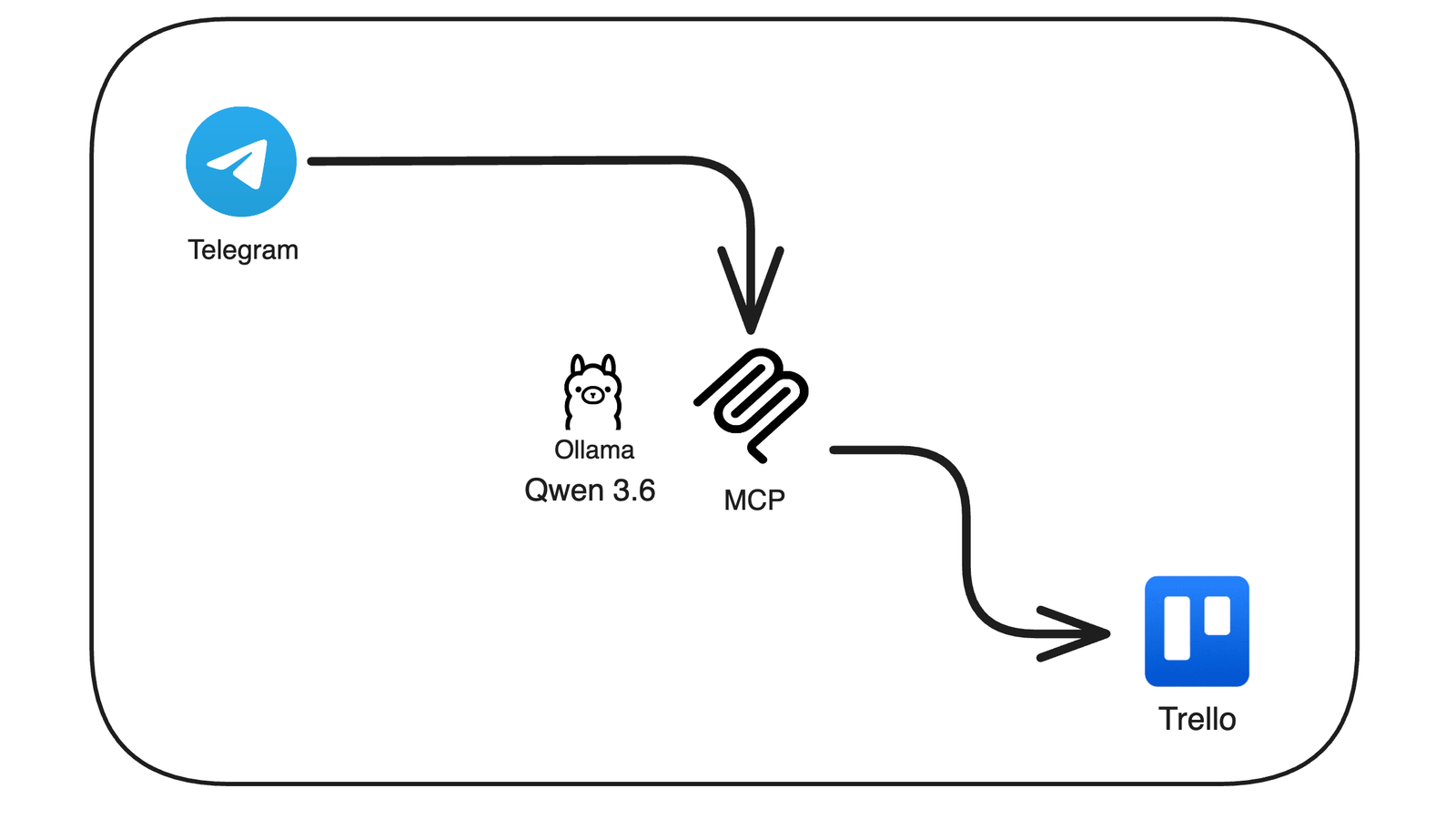
This tutorial walks you through setting up a Telegram bot that lets you manage your Trello boards in plain English, backed by a local Ollama instance and a 67-tool MCP server. By the end, you will have:
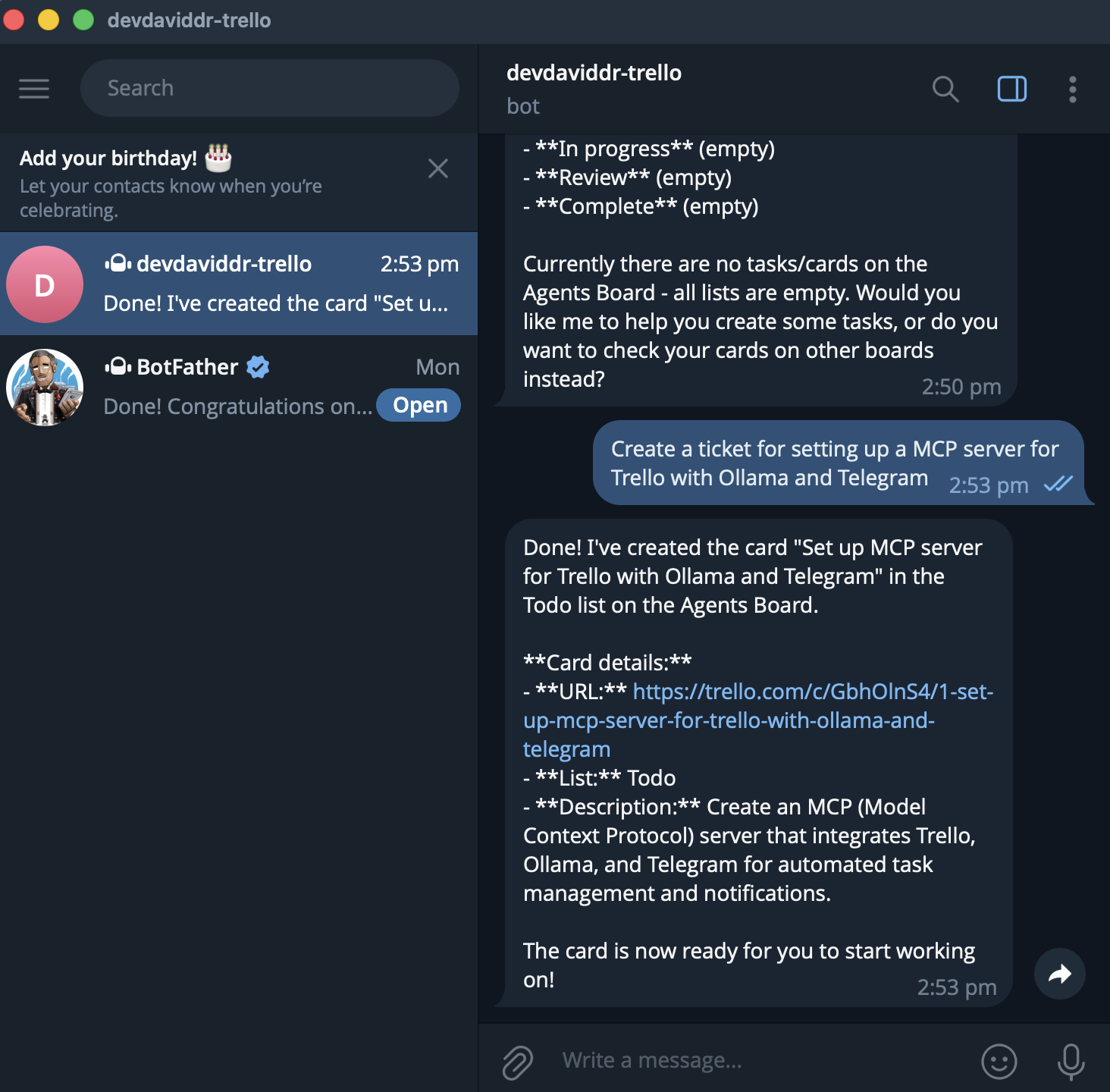
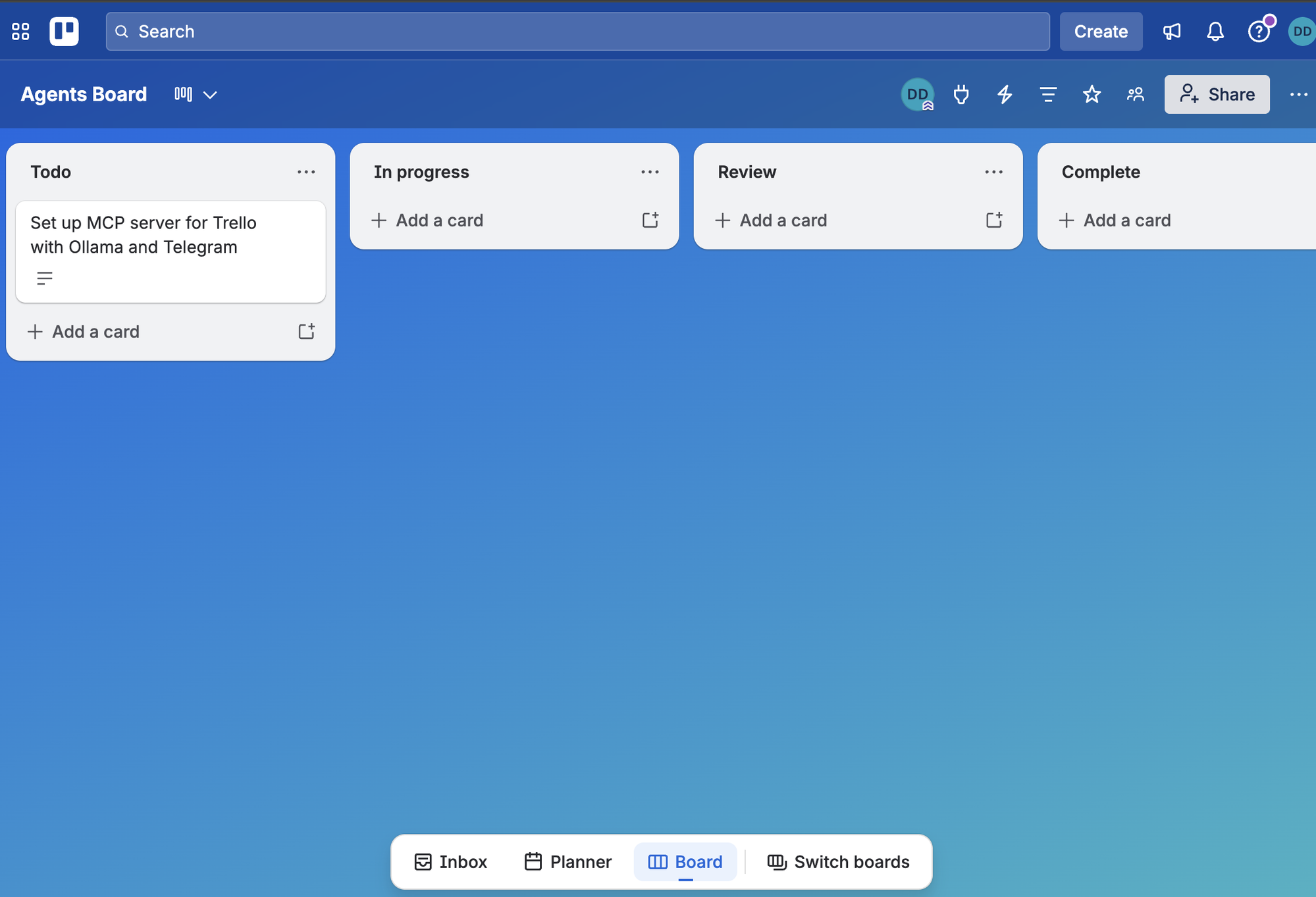
- A Telegram bot you can DM with requests like "what's overdue?" or "add a card to Roadmap called 'investigate flaky CI'".
- An MCP server exposing 67 Trello tools, reusable from any MCP host (Claude Desktop, the MCP Inspector, etc.).
- A Docker Compose deployment that runs the whole thing in a single container.
- A working understanding of how the pieces fit together so you can extend it for other SaaS APIs.
Part 1: What you will build
The system has three moving parts:
- Telegram, the user-facing chat surface.
- A bot process, which receives messages, drives an agent loop against Ollama, and dispatches tool calls.
- An MCP server, a subprocess of the bot that exposes Trello operations as typed tools.
A separate Ollama host on your LAN runs the LLM. Trello's REST API is the only off-network dependency.
What is MCP?
Model Context Protocol is a small standard for connecting LLMs to tools. The shape:
- An MCP server exposes a set of tools. Each tool has a name, a description, a JSON schema for its arguments, and a handler that performs the work.
- An MCP client (an LLM host like Claude Desktop, or a bot you write yourself) connects to the server, asks for the tool catalog, and dispatches the tools the model decides to call.
- The transport is either stdio (parent-child process) or HTTP/SSE (for remote servers).
The benefit: the same MCP server you build for your bot is reusable from Claude Desktop, the MCP Inspector, or any future MCP host. Write the integration once, use it from anywhere.
Part 2: Prerequisites
Before you start, make sure you have the following installed and accessible:
| Requirement | Notes |
|---|---|
| Docker + Docker Compose | Tested on Docker Desktop (macOS) and Docker Engine (Linux). |
| An Ollama instance | Reachable from the container. Default model qwen3-coder:latest needs ~16 GB VRAM. |
| A Trello account | Free tier works. You will create an API key and a token. |
| A Telegram account | Free. You will create a bot and find your numeric user id. |
| A code editor | Any. You will edit one .env file. |
Hardware note: Ollama can run on CPU but is too slow for an interactive chat experience. A GPU with at least 16 GB VRAM is recommended for the default model. If you only have 8 GB, swap to a smaller tool-calling model such as llama3.1:8b.
Part 3: Get your Trello credentials
You need two strings from Trello: an API key and a token.
3.1 Create a Power-Up to get an API key
- Open https://trello.com/power-ups/admin in a browser (logged in to Trello).
- Click New to create a Power-Up. Fill in any name and workspace. You are not actually shipping a Power-Up; you only need the credentials it generates.
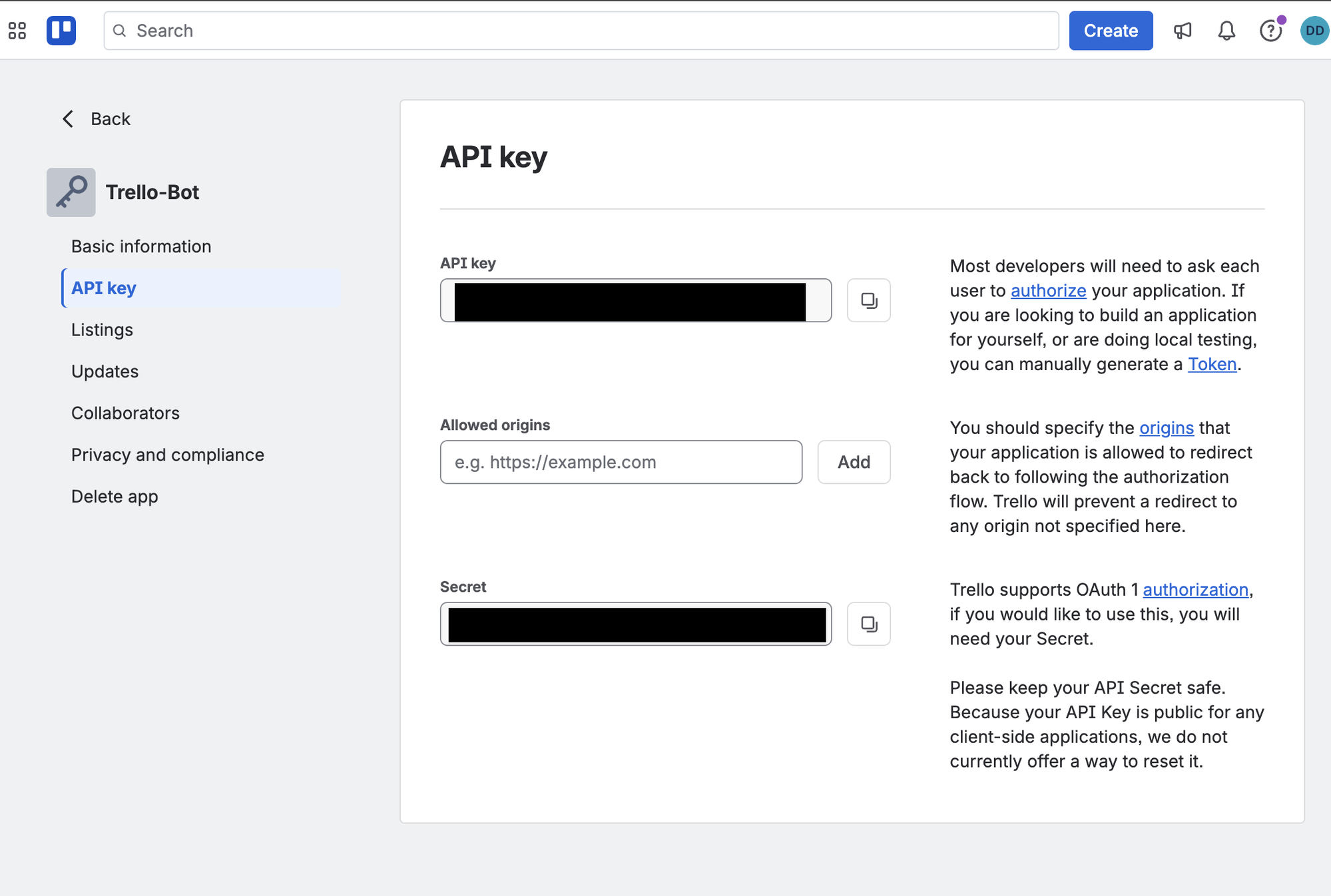
- After creation, click the Power-Up, then open the API key tab.
- Click Generate a new API key. Copy the value and save it as
TRELLO_API_KEY.
3.2 Generate a token
- On the same API key tab, find the description text on the right that contains a blue Token link. Click it.
- Trello will ask you to authorize the Power-Up against your account. Click Allow.
- Trello returns a long string. Copy it and save it as
TRELLO_API_TOKEN.
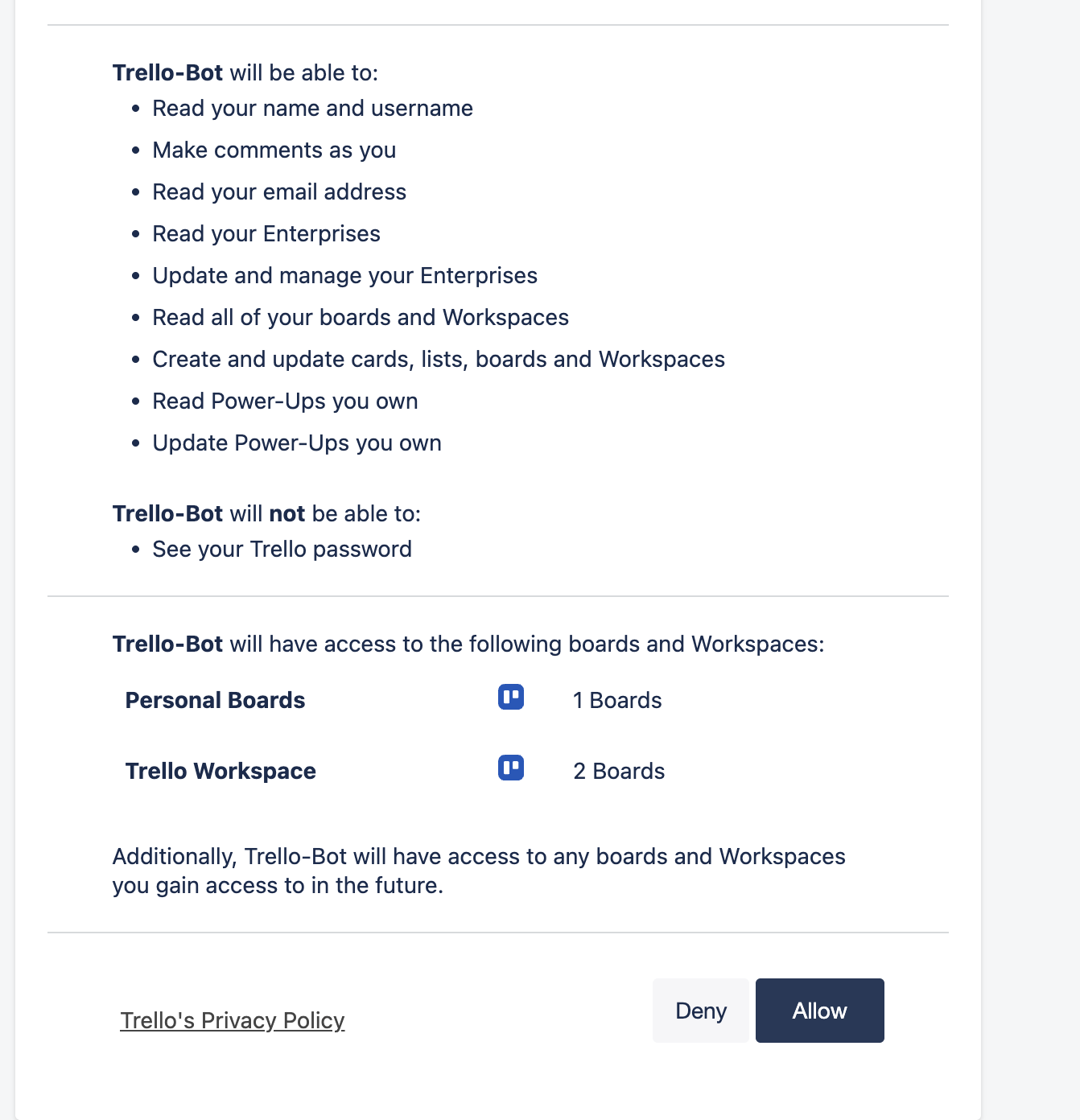
Common mistake: the Secret on the API key tab is not the token. The token is what you get after clicking the blue Token link and authorizing. Using the Secret instead of the Token is the most common cause of 401 Unauthorized errors later.
Part 4: Create your Telegram bot
4.1 Talk to BotFather
- In Telegram, search for @BotFather and open a chat.
- Send
/newbot. - Answer the prompts: a display name (anything) and a username ending in
bot(must be globally unique). - BotFather replies with a token that looks like
123456:ABC-DEF.... Save it asTELEGRAM_BOT_TOKEN.
The exchange looks roughly like this:
You         /newbot
BotFather   Alright, a new bot. How are we going to call it?
            Please choose a name for your bot.
You         My Trello Bot
BotFather   Good. Now let's choose a username for your bot.
            It must end in `bot`.
You         my_trello_bot
BotFather   Done! Congratulations on your new bot.
            Use this token to access the HTTP API:
            123456:ABC-DEF1234ghIkl-zyx57W2v1u123ew11
            Keep your token secure...
Keep this token private. Anyone with it can impersonate your bot.
4.2 Find your numeric Telegram user id
The bot uses your numeric Telegram id (not your @handle) for authorization.
- In Telegram, search for @userinfobot.
- Send any message.
- It replies with your numeric id (something like
987654321). Save it asTELEGRAM_ALLOWED_USER_IDS.
If you want to allow multiple users, list ids comma-separated: 123,456,789.
Part 5: Set up Ollama
Ollama runs the LLM. You can host it on the same machine as the bot, or on a separate GPU box on your LAN.
5.1 Install Ollama
Follow the install instructions at https://ollama.com. On macOS:
brew install ollama
ollama serve
brew install ollama
ollama serve
On Linux:
curl -fsSL https://ollama.com/install.sh | sh
curl -fsSL https://ollama.com/install.sh | sh
5.2 Pull a tool-calling model
The default model used by this bot is qwen3-coder:latest. Pull it:
ollama pull qwen3-coder:latest
ollama pull qwen3-coder:latest
You should see something like this once it finishes:
pulling manifest
pulling 0b8c4f5e7e9a... 100% ▕████████████████▏  18 GB
pulling 9f2c8a... 100% ▕████████████████▏  12 KB
pulling 7d6f1a... 100% ▕████████████████▏ 1.4 KB
verifying sha256 digest
writing manifest
success
Tested models that work:
qwen3-coder:latest(~16 GB VRAM, recommended)qwen-pro:latestllama3.1:8b(works on smaller GPUs)
Avoid: Gemma family models. Tool-calling reliability across a 67-tool surface is too low for an agent loop.
5.3 Confirm it is reachable
If Ollama runs on the same machine as the bot, the default http://localhost:11434 works. If it runs on a different machine on your LAN, find its IP and confirm:
curl http://<ollama-ip>:11434/api/tags
curl http://<ollama-ip>:11434/api/tags
You should see a JSON list of installed models. Save the URL as OLLAMA_HOST for later.
Part 6: Clone, configure, and run
You now have all four secrets and a working Ollama. Time to start the bot.
6.1 Clone the repository
git clone https://github.com/devdaviddr/trello-mcp-service.git
cd trello-mcp-service
git clone https://github.com/devdaviddr/trello-mcp-service.git
cd trello-mcp-service
6.2 Configure your environment
Copy the example file and fill in your values:
cp .env.example .env
$EDITOR .env
cp .env.example .env
$EDITOR .env
The minimum you must set:
TRELLO_API_KEY=...
TRELLO_API_TOKEN=...
TELEGRAM_BOT_TOKEN=...
TELEGRAM_ALLOWED_USER_IDS=...
OLLAMA_HOST=http://host.docker.internal:11434  # if Ollama is on the host
OLLAMA_MODEL=qwen3-coder:latest
TRELLO_API_KEY=...
TRELLO_API_TOKEN=...
TELEGRAM_BOT_TOKEN=...
TELEGRAM_ALLOWED_USER_IDS=...
OLLAMA_HOST=http://host.docker.internal:11434  # if Ollama is on the host
OLLAMA_MODEL=qwen3-coder:latest
OLLAMA_HOST from inside Docker:
- Same machine, macOS/Windows:
http://host.docker.internal:11434 - Same machine, Linux:
http://host.docker.internal:11434(the includedextra_hostsconfig makes this work) - Different machine on LAN:
http://<lan-ip>:11434
6.3 Start the container
docker compose up --build
docker compose up --build
The first build takes a minute or two. Once running you should see logs like:
trello-bot  | [mcp-server] connecting trello client
trello-bot  | [mcp-server] registered 67 tools
trello-bot  | [bot] ollama host: http://host.docker.internal:11434
trello-bot  | [bot] model: qwen3-coder:latest
trello-bot  | [bot] starting long-poll...
6.4 Test it
Open Telegram, find your bot by the username you gave BotFather, and send /start. The bot will greet you back. Now try a real query: what boards do I have?
The first reply will take 20–60 seconds while Ollama loads model weights into VRAM. Subsequent replies should land in 1–3 seconds.
Built-in commands:
/start: greeting/reset: clear this chat's conversation history/whoami: show your Telegram numeric id and whether you are authorized (use this if the bot replies "Not authorized")
Part 7: How it works under the hood
Now that the bot is running, this section explains the implementation so you can extend or fork it.
7.1 Defining a tool
Each Trello operation is registered as one MCP tool. The project uses zod for schemas. One definition gives compile-time types and runtime validation, and converts cleanly to JSON Schema for the LLM.
def(
  "create_card",
  "Create a new card in a list.",
  z.object({
    list_id: z.string(),
    name: z.string(),
    description: z.string().optional(),
    due: z.string().optional().describe("ISO 8601 due date"),
  }),
  async (args, trello) =>
    trello.cards.create(args.list_id, args.name, args.description, args.due),
);
def(
  "create_card",
  "Create a new card in a list.",
  z.object({
    list_id: z.string(),
    name: z.string(),
    description: z.string().optional(),
    due: z.string().optional().describe("ISO 8601 due date"),
  }),
  async (args, trello) =>
    trello.cards.create(args.list_id, args.name, args.description, args.due),
);
The handler delegates to a thin Trello REST client. zod parses the LLM's arguments at runtime, so if the model hallucinates a field type or omits a required arg, the call is rejected with a readable error string. That error becomes the next role: "tool" message, and the model uses it to fix its mistake on the next turn.
This pattern is repeated 67 times, one tool per Trello capability.
7.2 Running the MCP server over stdio
The MCP server is a small glue file:
import { Server } from "@modelcontextprotocol/sdk/server/index.js";
import { StdioServerTransport } from "@modelcontextprotocol/sdk/server/stdio.js";

const server = new Server(
  { name: "trello-mcp", version: "0.1.0" },
  { capabilities: { tools: {} } },
);

server.setRequestHandler(ListToolsRequestSchema, async () => ({ tools: toolSchemas }));
server.setRequestHandler(CallToolRequestSchema, async (req) => {
  const tool = toolsByName.get(req.params.name);
  if (!tool) {
    return { isError: true, content: [{ type: "text", text: `Unknown tool: ${req.params.name}` }] };
  }
  try {
    const result = await tool.handler(req.params.arguments ?? {}, trello);
    return { content: [{ type: "text", text: JSON.stringify(result ?? { ok: true }) }] };
  } catch (err) {
    const message = err instanceof Error ? err.message : String(err);
    return { isError: true, content: [{ type: "text", text: message }] };
  }
});

await server.connect(new StdioServerTransport());
import { Server } from "@modelcontextprotocol/sdk/server/index.js";
import { StdioServerTransport } from "@modelcontextprotocol/sdk/server/stdio.js";

const server = new Server(
  { name: "trello-mcp", version: "0.1.0" },
  { capabilities: { tools: {} } },
);

server.setRequestHandler(ListToolsRequestSchema, async () => ({ tools: toolSchemas }));
server.setRequestHandler(CallToolRequestSchema, async (req) => {
  const tool = toolsByName.get(req.params.name);
  if (!tool) {
    return { isError: true, content: [{ type: "text", text: `Unknown tool: ${req.params.name}` }] };
  }
  try {
    const result = await tool.handler(req.params.arguments ?? {}, trello);
    return { content: [{ type: "text", text: JSON.stringify(result ?? { ok: true }) }] };
  } catch (err) {
    const message = err instanceof Error ? err.message : String(err);
    return { isError: true, content: [{ type: "text", text: message }] };
  }
});

await server.connect(new StdioServerTransport());
stdio means the server runs as a subprocess of whoever launches it. No port to expose, no auth layer to manage, zero network latency on each tool call. The same binary works standalone with Claude Desktop pointed at it, covered in Part 8.
7.3 The Trello REST client with retries
Trello rate-limits at 100 requests per 10 seconds per token. A naïve fetch will fail on the first 429. The request layer in this project retries with jittered exponential backoff and honors Retry-After when Trello provides it.
async request<T>(method: string, path: string, params: QueryParams = {}): Promise<T> {
  const url = `${BASE}${path}?${this.auth(params)}`;
  let lastBody = "";
  let lastStatus = 0;
  for (let attempt = 1; attempt <= MAX_ATTEMPTS; attempt++) {
    const res = await fetch(url, { method });
    if (res.ok) {
      const text = await res.text();
      return text ? (JSON.parse(text) as T) : (undefined as T);
    }
    lastStatus = res.status;
    lastBody = await res.text();
    if (!RETRY_STATUSES.has(res.status) || attempt === MAX_ATTEMPTS) break;
    const retryAfter = Number(res.headers.get("retry-after"));
    const backoff = Number.isFinite(retryAfter) && retryAfter > 0
      ? retryAfter * 1000
      : Math.min(8000, 500 * 2 ** (attempt - 1)) + Math.random() * 250;
    await sleep(backoff);
  }
  throw new Error(`Trello ${method} ${path} failed: ${lastStatus} ${lastBody}`);
}
async request<T>(method: string, path: string, params: QueryParams = {}): Promise<T> {
  const url = `${BASE}${path}?${this.auth(params)}`;
  let lastBody = "";
  let lastStatus = 0;
  for (let attempt = 1; attempt <= MAX_ATTEMPTS; attempt++) {
    const res = await fetch(url, { method });
    if (res.ok) {
      const text = await res.text();
      return text ? (JSON.parse(text) as T) : (undefined as T);
    }
    lastStatus = res.status;
    lastBody = await res.text();
    if (!RETRY_STATUSES.has(res.status) || attempt === MAX_ATTEMPTS) break;
    const retryAfter = Number(res.headers.get("retry-after"));
    const backoff = Number.isFinite(retryAfter) && retryAfter > 0
      ? retryAfter * 1000
      : Math.min(8000, 500 * 2 ** (attempt - 1)) + Math.random() * 250;
    await sleep(backoff);
  }
  throw new Error(`Trello ${method} ${path} failed: ${lastStatus} ${lastBody}`);
}
Settings:
RETRY_STATUSESis{429, 502, 503, 504}.- Up to 4 attempts.
- The final error includes the status and response body, so failures are debuggable from logs.
This single function carries every Trello call in the codebase.
7.4 The agent loop
The Ollama npm package speaks the tool-calling API directly, so the loop is short:
for (let turn = 0; turn < MAX_TURNS; turn++) {
  const res = await ollama.chat({ model, messages, tools, stream: false });
  const msg = res.message;
  messages.push(msg);

  const calls = msg.tool_calls ?? [];
  if (calls.length === 0) return { reply: msg.content ?? "" };

  for (const call of calls) {
    let toolResult: string;
    try {
      toolResult = await mcp.callTool(call.function.name, normalizeArgs(call.function.arguments));
    } catch (err) {
      toolResult = `ERROR: ${err instanceof Error ? err.message : String(err)}`;
    }
    messages.push({ role: "tool", content: truncate(toolResult), tool_name: call.function.name });
  }
}
for (let turn = 0; turn < MAX_TURNS; turn++) {
  const res = await ollama.chat({ model, messages, tools, stream: false });
  const msg = res.message;
  messages.push(msg);

  const calls = msg.tool_calls ?? [];
  if (calls.length === 0) return { reply: msg.content ?? "" };

  for (const call of calls) {
    let toolResult: string;
    try {
      toolResult = await mcp.callTool(call.function.name, normalizeArgs(call.function.arguments));
    } catch (err) {
      toolResult = `ERROR: ${err instanceof Error ? err.message : String(err)}`;
    }
    messages.push({ role: "tool", content: truncate(toolResult), tool_name: call.function.name });
  }
}
What it does:
- If
tool_callsis empty, the model has produced its final answer and the loop returns. - Otherwise it dispatches each call to the MCP server and pushes the result back as a
role: "tool"message. Errors are included; that is how the model recovers. MAX_TURNSdefaults to 16 so a confused model cannot spin forever.- Tool output is truncated to a 16 KB budget before entering history, so a large
list_boardsdoes not blow past the context window.
7.5 Telegram wiring
The Telegram side, using grammy:
const bot = new Bot(token);

bot.on("message:text", async (ctx) => {
  if (!isAuthorized(ctx.from?.id)) return ctx.reply("Not authorized");

  await chatQueue.run(ctx.chat.id, async () => {
    const history = historyStore.get(ctx.chat.id);
    const { reply, history: next } = await agent.chat(history, ctx.message.text);
    historyStore.set(ctx.chat.id, next);
    await ctx.reply(reply);
  });
});

await bot.start();
const bot = new Bot(token);

bot.on("message:text", async (ctx) => {
  if (!isAuthorized(ctx.from?.id)) return ctx.reply("Not authorized");

  await chatQueue.run(ctx.chat.id, async () => {
    const history = historyStore.get(ctx.chat.id);
    const { reply, history: next } = await agent.chat(history, ctx.message.text);
    historyStore.set(ctx.chat.id, next);
    await ctx.reply(reply);
  });
});

await bot.start();
Two non-obvious details, learned the hard way:
chatQueueserializes messages per chat. If two messages arrive in the same chat before the first finishes, both handlers would read the same starting history, and the second one'sset()would clobber the first. A small Promise-queue keyed by chat id prevents this.- History trim must land on a user-message boundary. Tool-calling APIs require an assistant message with
tool_callsto be immediately followed byrole: "tool"messages for each call. A naïveslice(-40)can leave an orphan tool result, and the next API call rejects it. The project's trim walks the cut point forward until it lands onrole: "user".
Part 8: Use the MCP server standalone
The MCP server is independent of the bot. You can plug it into any MCP host.
8.1 With Claude Desktop
Add this to claude_desktop_config.json:
{
  "mcpServers": {
    "trello": {
      "command": "node",
      "args": ["/absolute/path/to/trello-mcp-service/dist/mcp-server/index.js"],
      "env": {
        "TRELLO_API_KEY": "...",
        "TRELLO_API_TOKEN": "..."
      }
    }
  }
}
{
  "mcpServers": {
    "trello": {
      "command": "node",
      "args": ["/absolute/path/to/trello-mcp-service/dist/mcp-server/index.js"],
      "env": {
        "TRELLO_API_KEY": "...",
        "TRELLO_API_TOKEN": "..."
      }
    }
  }
}
Restart Claude Desktop. All 67 Trello tools become available in any conversation. Ask "create a card on Roadmap called Buy milk" and Claude will discover create_card, fill the arguments, and return the result inline as a tool-use turn. The same goes for the read-side tools: "what's on my board?" produces a list_boards + list_cards_on_board chain without any extra prompting.
8.2 With the MCP Inspector
npx @modelcontextprotocol/inspector node dist/mcp-server/index.js
npx @modelcontextprotocol/inspector node dist/mcp-server/index.js
The Inspector opens a browser UI where you can browse the tool catalog, read schemas, and call tools manually. It is the fastest way to verify tool behavior without involving an LLM, and the right place to debug a failing tool before you suspect the model.
Part 9: Customizing and extending
9.1 Add a new Trello tool
- Open
src/mcp-server/tools/and pick the file matching the resource (e.g.cards.ts). - Add a new
def(...)registration with a name, description, zod schema, and async handler. - Rebuild the container:
docker compose up --build.
The new tool is picked up automatically. There is no separate registration step.
9.2 Swap to a different SaaS API
The project is a clean reference for any REST-backed SaaS. To fork it:
- Replace
src/mcp-server/trello/with a client for your target API (Linear, GitHub Issues, Notion, etc.). - Replace the tool registrations under
src/mcp-server/tools/with your new operations. - Everything else stays the same: the agent loop, Telegram wiring, history management, and Docker setup.
The whole codebase is roughly 1,900 lines of TypeScript across 35 files.
9.3 Tunable knobs
All behavior is env-var driven. Useful ones:
| Var | Default | Purpose |
|---|---|---|
MAX_TURNS |
16 |
Max chained tool calls per user message. |
TOOL_OUTPUT_CHAR_BUDGET |
16000 |
Tool output truncation before entering history. |
OLLAMA_TIMEOUT_MS |
120000 |
Per-call abort timeout for Ollama. |
OLLAMA_MODEL |
qwen3-coder:latest |
Any tool-calling-capable model. |
Part 10: Troubleshooting
| Symptom | Cause and fix |
|---|---|
| Bot starts but never replies, no errors in logs | On Apple Silicon, node:20-alpine runs under Rosetta and Node's TLS hangs on api.telegram.org. The project uses node:20-slim to avoid this. If you forked back to alpine, switch back. |
Not authorized reply in Telegram |
TELEGRAM_ALLOWED_USER_IDS must contain your numeric id, not your @handle. Send /whoami to the bot to see what id Telegram reports for you. |
401 Unauthorized from Trello |
The Secret on the Power-Up API key page is not the Token. Click the blue Token link, authorize, and use that string. |
I hit my tool-call limit |
A multi-step request exceeded MAX_TURNS=16. Bump it via env or break the request into smaller asks. Frequent hits often mean the model is looping; try a stronger model. |
| First reply takes 20–60 seconds | Ollama cold-loads the model into VRAM on the first request. Subsequent calls are normal-speed. Pre-warm with a curl to /api/generate if you want the first user-facing reply to be fast. |
| Bot can reach internet but not Ollama | If Ollama runs on the host, set OLLAMA_HOST=http://host.docker.internal:11434. The included docker-compose.yml has the extra_hosts mapping needed for Linux. |
Result
End-to-end on a warm model: roughly 1.5 seconds per reply. Cold start: 20–60 seconds for the first turn while Ollama loads weights into VRAM. The MCP server exposes 67 tools, from create_card to list_cards_due_soon to set_card_cover. Because it speaks plain MCP, plugging it into Claude Desktop is a four-line config addition.
Forking it for a different SaaS is roughly two evenings of work for a comparable surface.
Source
Full source, README, architecture diagram, and the complete 67-tool inventory: github.com/devdaviddr/trello-mcp-service.