Agents and Skills in Claude Code: How I Taught It to Draw Azure Diagrams
What it is
Claude Code ships with two ways to extend it: agents and skills. Most people reach for one without a clear picture of the difference, pick wrong, and end up fighting the tool.
So I built a small open collection to pin the concepts down, github.com/devdaviddr/ai-resources, and the flagship item in it is a skill I keep coming back to: azure-diagram. You describe an Azure architecture in one sentence and it hands you a real, editable .excalidraw file with official Azure icons, resource-group containers, and connectors that route themselves around everything else.
This article does two things. First, it explains what agents and skills are and when to reach for each. Then it opens up the azure-diagram skill and shows exactly how it was instructed. A skill is nothing but instructions, and the interesting engineering is all in how you write them.
Code: github.com/devdaviddr/ai-resources · the skill
The problem
You teach Claude Code something once. The exact steps to cut a release, the house style for a diagram, the way your team writes commit messages. The next session it's gone, so you paste the same instructions again. Every conversation starts from zero.
There are really two different itches here, and conflating them is the mistake.
Sometimes you want to teach the assistant a procedure it should follow right here, building on the conversation you're already in. Other times you want to hand a whole job to a separate worker: let it churn through a noisy pile of file reads off to one side and come back with just the answer.
Claude Code has a distinct tool for each. Skills for the first, agents for the second. Get the mapping right and both feel effortless. Get it wrong and you're either polluting your main thread with a task that should have been offloaded, or spinning up an isolated worker that can't see the context it needed.
What agents and skills actually are
Strip the jargon away and the whole distinction is one line:
A skill teaches the assistant how to do something inside the current conversation. An agent hands a whole task off to a separate assistant that reports back.
An agent (in Claude Code, a subagent) is a self-contained assistant with its own system prompt, its own allowed tools, and optionally its own model. When you invoke it, it spins up with a fresh context window that holds only its system prompt and the task you handed it. It can't see your conversation. You can't see it think. You get its final message and nothing else.
Think of an agent as a colleague you hand a ticket to. They go away, do the work in their own workspace, and come back with a result.
A skill is the opposite shape. It's a packaged capability: instructions, and optionally scripts and reference files, that the assistant loads on demand and follows in the current conversation. No separate worker, no isolation. It augments the assistant you're already talking to with know-how it didn't have a moment ago.
If an agent is a colleague you delegate to, a skill is a playbook the assistant pulls off the shelf the instant it recognises the situation the playbook is for.
Here's the choice in a table:
| Skill | Agent | |
|---|---|---|
| Runs in | the current conversation | its own isolated context |
| Sees the conversation | yes | no, only the handed-in task |
| Returns | nothing; it steers the current assistant | a single final message |
| Best for | reusable how-to, procedures, house style | delegated, self-contained tasks |
| Can bundle files/scripts | ✅ | ✗ (single prompt file) |
| Own model / tool sandbox | inherits the session's | independently configurable |
Rules of thumb: need the result to build on the current conversation? Reach for a skill. Want to keep noisy work out of the main thread, or run something with restricted tools? Reach for an agent. Encoding how to do something? Skill. Offloading a job? Agent.
And they compose. A skill's instructions can tell the assistant to delegate part of the work to an agent.
Knowing the definitions doesn't tell you how to write a good one, though. "Instructions the assistant follows" is doing a lot of quiet work in that description. The rest of this article opens up a real skill and shows what those instructions actually look like.
The skill anatomy: a folder with an entry point
The azure-diagram skill is a folder. Its entry point is SKILL.md, and it carries its own tools alongside:
azure-diagram/
  SKILL.md                     # frontmatter + the instructions Claude follows
  reference/azure-catalog.md   # the design system: palette, zones, scene schema
  scripts/azdiagram.py         # pure-Python generator (stdlib only)
  assets/icons/                # 647 official Azure SVG icons
  assets/templates/            # a canonical worked example
That co-location is the point: copy the folder and the skill works anywhere, with nothing to install. The generator is stdlib-only Python and self-locates its own bundled assets, so the identical engine runs on Claude Code and opencode alike.
A skill is portable know-how in a folder: instructions plus everything they depend on. If the assistant needs a script, a template, or a 647-icon set to do the job, it ships inside the skill, not in your environment.
The SKILL.md opens with YAML frontmatter, and this part is doing more than it looks:
# claude/skills/azure-diagram/SKILL.md: the trigger + the sandbox
---
name: azure-diagram
description: Create Azure cloud architecture diagrams as Excalidraw .excalidraw
  files, using a consistent Azure design system: category colour-coding,
  resource-group/VNet zone containers, service-node templates with official
  Azure icons, and flow arrows. Use when the user asks to draw, diagram, or
  visualise an Azure architecture, environment, resource group, network
  topology, or app/data/auth flow. Trigger on "/azure-diagram", "draw the
  Azure architecture", or "diagram this Azure setup".
allowed-tools: Read, Bash(python3 ${CLAUDE_SKILL_DIR}/scripts/*)
---
# claude/skills/azure-diagram/SKILL.md: the trigger + the sandbox
---
name: azure-diagram
description: Create Azure cloud architecture diagrams as Excalidraw .excalidraw
  files, using a consistent Azure design system: category colour-coding,
  resource-group/VNet zone containers, service-node templates with official
  Azure icons, and flow arrows. Use when the user asks to draw, diagram, or
  visualise an Azure architecture, environment, resource group, network
  topology, or app/data/auth flow. Trigger on "/azure-diagram", "draw the
  Azure architecture", or "diagram this Azure setup".
allowed-tools: Read, Bash(python3 ${CLAUDE_SKILL_DIR}/scripts/*)
---
Two fields carry the weight. The description is written as a trigger, not a title. It names the situations and the exact phrases that should fire the skill ("draw the Azure architecture", "diagram this Azure setup"). This matters because of how skills load: only the description sits in context at all times. The rest of SKILL.md is read only when a task matches it, and the bundled reference files are pulled in only when the instructions point at them. That three-tier loading (description, then body, then referenced files) is called progressive disclosure, and it's what lets you keep many skills installed without any of them bloating the context.
The allowed-tools line is a sandbox: Read, plus Bash restricted to python3 calls against the skill's own scripts/ directory. The skill can run its generator without a permission prompt, but it can't shell out to anything else. Least privilege, declared up front.
Frontmatter gets the skill loaded. A loaded skill still has to produce a pixel-perfect diagram, and language models are famously bad at pixel-perfect anything. If you just ask a model to place boxes and arrows on a canvas, you get overlapping icons and connectors slicing through labels. The body of SKILL.md is where that problem gets engineered away.
The core idea: the model decides what, Python decides where
Here's the single idea the whole skill is built around, and it's stated plainly in the instructions:
The model decides what connects to what; a deterministic Python generator decides where everything goes. A language model is good at intent but unreliable at pixel-level layout, so it only ever writes a compact scene, and the script computes the geometry, routes the connectors, and bakes the file.
The instructions never ask Claude to place a coordinate. They ask it to emit a declarative scene, { title, grid, nodes[], panels[], edges[] }, describing which services exist, how they group, and what connects to what. The bundled azdiagram.py does everything spatial:
- Place: grid cells become pixel centres, so spacing is uniform by construction.
- Panels: resource-group containers auto-fit their member nodes and get the standard chip.
- Route: an obstacle-aware orthogonal router fans edges into anchor slots and picks a path that crosses no icon or caption. If an edge can't be routed cleanly, the builder prints a warning instead of drawing a bad line.
- Save: clean strokes and Helvetica instead of the hand-drawn look, dark canvas with white ink, each icon embedded as a base64 SVG, icon and caption grouped so they drag as one, and every arrow bound to its nodes so it snaps and follows when you move things around later.
This split is why the diagrams come out consistent. The model contributes intent, which it's good at; the generator contributes geometry, which it's reliable at. Neither is asked to do the other's job.
The output detail matters too: this isn't an image export. The .excalidraw file is fully editable. Icons and captions move as a unit, resource groups move with their contents, and arrows stay attached when you rearrange. The skill produces a starting point you can keep working on, not a screenshot.
A great idea buried in prose won't get followed, though. The model needs a procedure: an ordered set of steps concrete enough to execute the same way every time. That's the real body of the skill.
The workflow: instructions the model can actually follow
The heart of SKILL.md is a numbered workflow. Not prose. Steps, each with the exact command to run. This is the single most important authoring lesson I took from building it: keep the body procedural. Numbered steps outperform paragraphs because the model is following instructions, so you make them followable.
The azure-diagram procedure reads, in essence:
- Understand the architecture. Identify the services, their groupings (resource group, Container Apps Environment, VNet), and the flows between them. If the user pointed at an existing diagram, read it first and match its colours rather than imposing new ones.
- Read the catalog. Open the bundled
reference/azure-catalog.mdfor the palette, zone styles, node recipe, and layout grid. This file is pulled in on demand, the progressive-disclosure payoff. To find the right icon for a service, search the bundled set:azdiagram.py icons <query>. - Compose the scene: the declarative JSON, no coordinates.
- Validate.
python3 azdiagram.py validate --from /tmp/scene.jsonflags missing fields, duplicate ids, and sub-14px fonts before anything is drawn. - Save.
python3 azdiagram.py scene "<out>.excalidraw" --from /tmp/scene.jsonbuilds the dark, icon-centric style that reads like a Microsoft-docs diagram. (A pastel-box style on a white canvas exists too, for when a user wants the classic look; same engine, different recipe.) - Optionally live-render. If an Excalidraw MCP is present in the session, render the same elements inline; if not, skip silently. The
.excalidrawfile is the guaranteed deliverable.
Notice the shape of good instructions here. Every step that acts is a real, runnable command, not a description of one. There's a validation gate before the expensive save. There's an explicit fallback ("skip silently") so a missing optional tool never derails the run. And the output contract is stated flatly: the file is the guaranteed deliverable, the live render is a bonus.
Give the model a concrete output shape and a validation gate, and consistency stops being something you hope for. It becomes something the procedure enforces.
That's the entire trick to a reliable skill. Not a cleverer model; a tighter script for it to follow.
Installing it
Claude Code discovers skills in two places: .claude/skills/ in a project (that project only) and ~/.claude/skills/ in your home directory (every project). Installing a skill is copying its folder into one of them. The whole folder, because the generator, catalog, and icons must travel with SKILL.md:
git clone https://github.com/devdaviddr/ai-resources.git
cd ai-resources

# user-scoped: available in every project
cp -R claude/skills/azure-diagram ~/.claude/skills/

# or project-scoped: just one project
cp -R claude/skills/azure-diagram /path/to/project/.claude/skills/
git clone https://github.com/devdaviddr/ai-resources.git
cd ai-resources

# user-scoped: available in every project
cp -R claude/skills/azure-diagram ~/.claude/skills/

# or project-scoped: just one project
cp -R claude/skills/azure-diagram /path/to/project/.claude/skills/
The repo also ships a linker that wires up the whole collection with symlinks instead of copies, so a git pull updates everything in place:
./scripts/link.sh          # discoverable inside this repo only
./scripts/link.sh --global # everywhere (links into ~/.claude and ~/.config/opencode)
./scripts/link.sh          # discoverable inside this repo only
./scripts/link.sh --global # everywhere (links into ~/.claude and ~/.config/opencode)
The skill works in opencode too. The same SKILL.md format follows the Agent Skills open standard, so the repo carries an opencode copy with the identical generator: cp -R opencode/skills/azure-diagram ~/.config/opencode/skills/. The only difference is the last step: Claude Code can live-render the diagram inline via an Excalidraw MCP, while opencode just writes the file.
No pip installs, no npm, no config. The generator is stdlib-only Python, so if you have python3, copying the folder is the entire setup.
A run, end to end
Start Claude Code anywhere the skill is installed and describe an architecture:
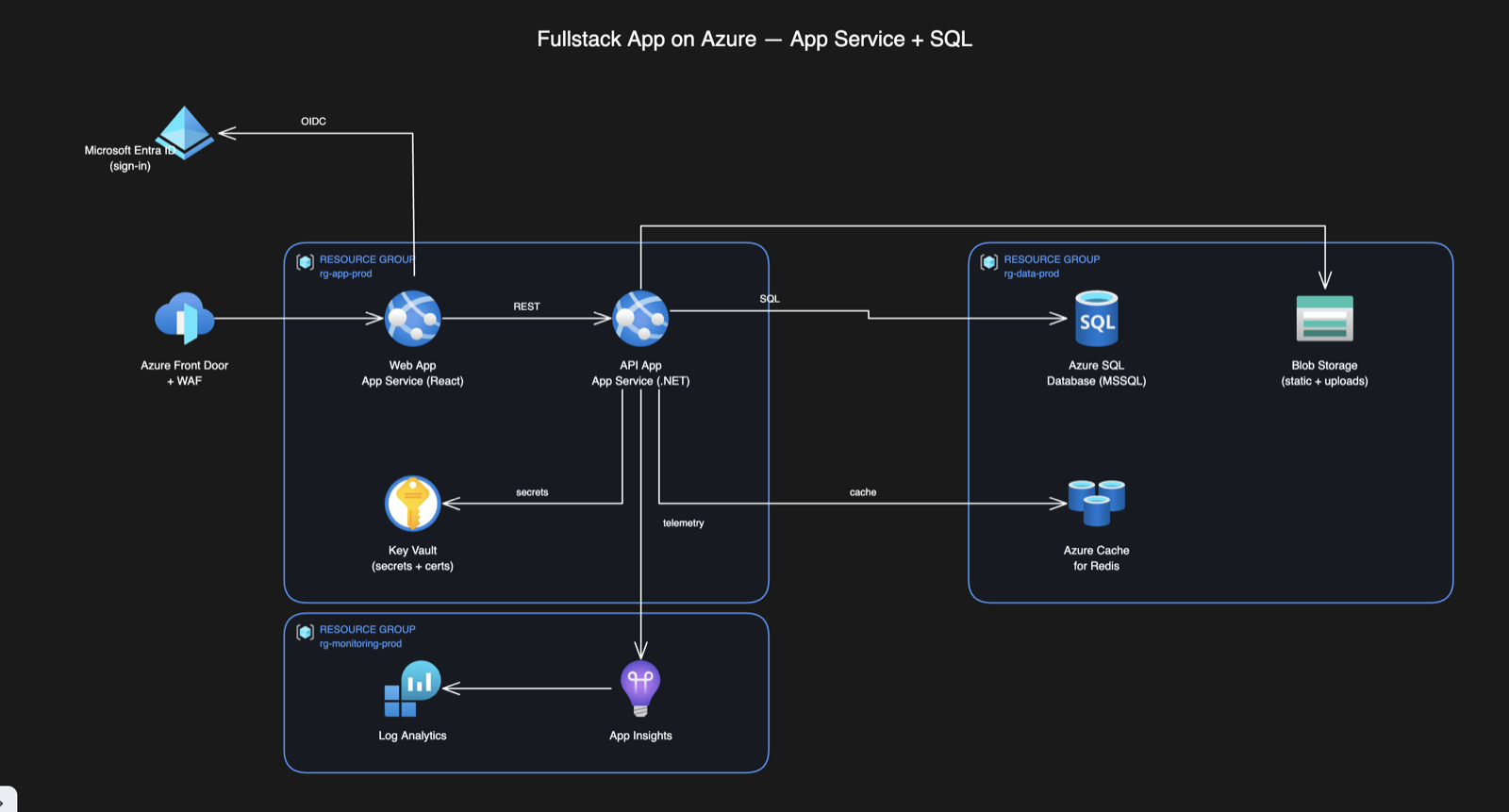
you> Diagram a fullstack app on Azure using App Service and MSSQL, with resource groups.

[Skill: azure-diagram loads on the description match]
[python3 azdiagram.py icons "app service sql" → app-service.svg, sql-database.svg]
[Write /tmp/scene.json → 2 panels, 6 nodes, 7 edges, no coordinates]
[python3 azdiagram.py validate --from /tmp/scene.json → OK]
[python3 azdiagram.py scene ~/Desktop/Fullstack-Architecture.excalidraw --from /tmp/scene.json]

bot> Saved to ~/Desktop/Fullstack-Architecture.excalidraw. Two resource
     groups, App Service wired to SQL Database, monitoring off to the side.
     Open it at excalidraw.com or in the VS Code Excalidraw extension.
The expected output is the diagram at the top of this article. That image is this prompt's result: dark canvas, official icons, resource-group containers, connectors routed around every node, and all of it still editable when you open the file.
Using it
A skill fires one of two ways, and both lean on that description:
- Model-triggered: a task matches the
descriptionand Claude loads the skill on its own. - Explicit: you invoke it by name with
/azure-diagram.
In practice, prompts like these produce a diagram:
"Draw the Azure architecture for an event-driven order pipeline: Front Door, API Management, Service Bus, Functions, Cosmos DB, with an observability resource group."
"/azure-diagram a hub-and-spoke integration: API Management in the middle, Service Bus, Functions, Azure SQL and Key Vault as spokes."
Either way, the description is doing the real work. A vague one means the skill never fires, or fires when it shouldn't. This is why "write the description as a trigger" keeps coming up: it's the only part of the skill the assistant sees before deciding whether to use it.
From the user's seat, all of this is invisible. You type one sentence describing an architecture, and a few seconds later a polished, editable .excalidraw file lands on your Desktop. The scene JSON, the validation pass, the obstacle-aware router, the icon embedding: all of it happens in the background. It just feels like the assistant knew how to draw.
What makes a skill's instructions good
Everything above generalises. Whatever you're encoding (release notes, a PR house style, a deploy runbook), the same rules make a skill that actually works:
| Principle | What it means in practice |
|---|---|
| Description is a trigger, not a title | Put the phrases, verbs, and situations that should activate it. It's the only part loaded up front. |
| Keep the body procedural | Numbered, runnable steps beat prose. The model is following, so make it followable. |
| Give a concrete output shape | State the exact format you want produced. Consistency comes from specifying it. |
| Exploit progressive disclosure | Keep SKILL.md lean; push long references and tables into supporting files and link to them. |
| Be self-contained and portable | Bundle every dependency in the folder so copying it is all it takes to install. |
| One capability per skill | A tightly scoped skill is easier to trigger correctly than a sprawling one. |
The azure-diagram skill hits every row: a trigger-shaped description, a six-step runnable procedure, a validation gate that enforces the output shape, a design catalog loaded on demand, a stdlib-only generator and 647 icons bundled in the folder, and exactly one job.
Result
Agents and skills are the two shapes of "teach Claude Code something reusable." An agent is a worker you delegate a whole job to and get one answer back. A skill is a playbook the assistant follows in your current conversation. Pick by whether you want work done elsewhere or know-how applied here.
The azure-diagram skill is what that second shape looks like when it's done well: a folder of instructions that turns "diagram a fullstack app on Azure" into an editable architecture diagram, by being disciplined about what it asks the model to do (decide intent) versus what it hands to a deterministic script (decide geometry).
The same skeleton generalises to anything procedural. Swap the Azure catalog for your team's commit conventions and you have a commit-message skill. Swap the diagram generator for a git log bucketer and you have a release-notes skill. Swap it for your deploy runbook and you have a one-command release. The point isn't the diagrams. It's that once you can see a skill as a trigger, a procedure, and its bundled dependencies, you can write one for anything you're tired of re-explaining.
Source
The full collection, the concepts deep-dive, and the azure-diagram skill: github.com/devdaviddr/ai-resources.
- Concepts: CONCEPTS.md
- The skill: claude/skills/azure-diagram